
Getting Started with Your Jetson Developer Kit: Essential Setup for AI Innovation
So I just unboxed my fourth Jetson board last week — yeah, I’ve been doing this a while — and honestly, the setup process still gets my pulse up a little. Not in a bad way. More like that feeling when you’re about to build something genuinely cool.
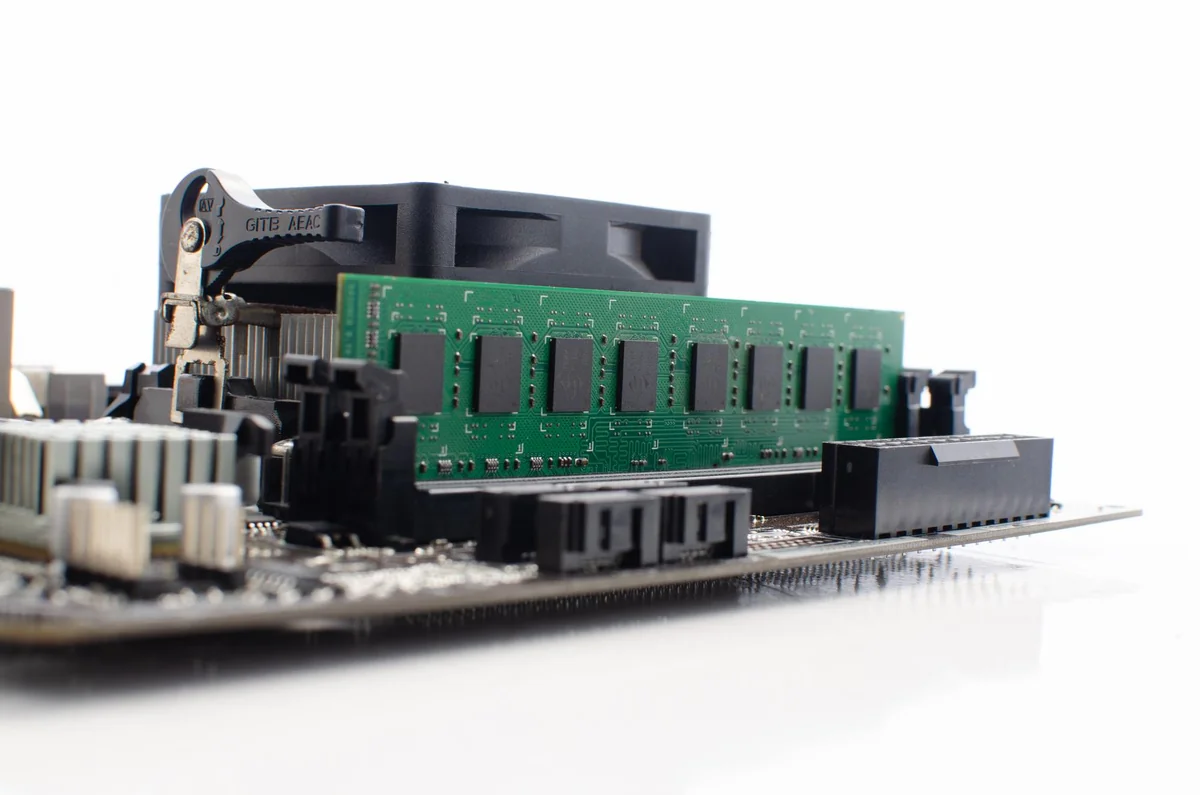
First thing you need to know: the Jetson Developer Kit doesn’t arrive as a plug-and-play toy. It’s a developer board. Meaning you’ll need a few extras before you can fire it up. Grab a USB-C power supply (the official NVIDIA one is 15W, but check your specific model — some newer kits want 20W or more), a microSD card with at least 32GB capacity, and a decent USB keyboard and mouse. I learned the hard way that cheap wireless peripherals can act weird during initial boot.
The actual flashing process — getting JetPack OS onto your board — has two paths. You can use the SDK Manager on a host Ubuntu machine, which gives you the full developer experience with all the AI libraries baked in. Or you can flash a pre-built image directly to your microSD card using something like Etcher. Honestly? If you’re just getting started, the SD card route is way less painful. Takes maybe 20 minutes.
But here’s where it gets interesting.
Once you boot up and connect to WiFi, you’ll want to run the initial system updates right away. The command is simple — sudo apt update && sudo apt upgrade — but it can take 30-40 minutes depending on your internet speed. Make coffee. Seriously.
And if you’re planning to integrate any third-party hardware (sensors, cameras, whatever), check compatibility with TWOWIN components early. I’ve seen people waste entire weekends trying to force incompatible GPIO devices to work when a quick spec check would’ve saved them. The Jetson community forums are your friend here — someone’s already tried whatever weird thing you’re attempting.
One last thing: enable the performance mode in your power settings if you’re doing any real AI work. The default balanced mode throttles the GPU way too aggressively.
Building Real-World AI Projects on the Jetson Platform: From Prototypes to Production
So I built my first real project on the Jetson last spring — a wildlife camera trap that could identify specific animals in real-time and send alerts when it spotted anything interesting. Took me three weeks from idea to deployment in my backyard. And honestly? That’s the whole point of this platform. It’s built for people who want to ship actual products, not just run benchmarks.
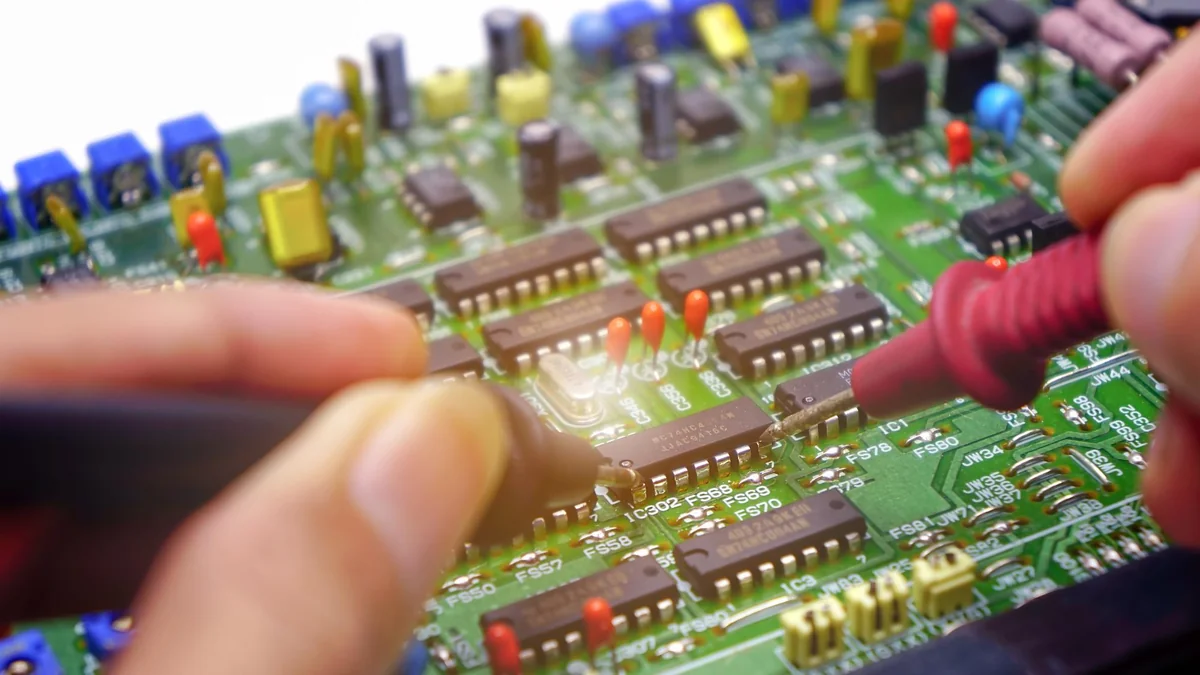
The prototype phase is where most people get comfortable. You can test models, tweak parameters, mess around with TWOWIN sensor integrations without worrying too much about power consumption or thermal management. But moving from “it works on my desk” to “it works in the field for six months straight” — that’s where things get interesting. And messy.
Here’s what I learned the hard way: thermal throttling will bite you if you don’t plan for it. My wildlife camera would work perfectly for 20 minutes, then start dropping frames because I’d stuffed it in a weatherproof enclosure with zero airflow. Amateur move. You need to think about cooling from day one, especially if you’re running inference continuously. A small 40mm fan costs three bucks and can save your entire deployment.
Power management is the other big one. The Jetson Developer Kit in performance mode pulls serious wattage — fine when you’re prototyping with a wall adapter, not fine when you’re running on solar or battery. I ended up writing a custom script that dynamically adjusts the power mode based on inference demand. Runs in eco mode when idle, switches to performance only when it detects motion. Battery life went from 6 hours to almost 40.
And test your edge cases obsessively. Like, way more than you think you need to. My model worked great on raccoons and deer during testing, then completely failed on possums because I’d only trained it on daytime footage. The Jetson handled the compute fine — my dataset was just garbage. (This isn’t a hardware problem, but you’ll discover it during real-world deployment.)
One more thing: version control your entire environment, not just your code. I use Docker containers for everything now because trying to replicate a working setup six months later is basically impossible otherwise.
Mastering Jetson AI Tools and Frameworks for Advanced Developer Workflows
So I spent about three months last year trying to cobble together a custom vision pipeline, and honestly? I was doing it wrong. The Jetson Developer Kit ships with this entire ecosystem of tools that I just… ignored at first because I thought I knew better. Spoiler: I didn’t.

Start with JetPack SDK — it’s not optional, it’s foundational. Bundles TensorRT for inference acceleration, cuDNN for deep learning primitives, and VPI (Vision Programming Interface) for computer vision tasks. The version that shipped in early 2026 finally fixed the USB camera compatibility issues that plagued the 5.x releases. And yes, you need to flash it properly. Don’t try to upgrade piecemeal. Just don’t.
TensorRT is where the real performance gains happen. I’m talking 5-7x faster inference compared to running raw ONNX models — sometimes more if you enable INT8 quantization. But here’s the thing: you need to profile your model first using trtexec to see where the bottlenecks actually are. I wasted two weeks optimizing the wrong layer because I assumed the problem was where it wasn’t.
For camera work, DeepStream SDK is absurdly powerful. Multi-stream video analytics with hardware-accelerated decode. I run four 1080p streams simultaneously on an Orin module while still having headroom for other tasks. The learning curve is steep though — expect to spend a solid week just understanding the pipeline architecture. (The documentation assumes you already know GStreamer, which I definitely did not.)
TWOWIN development boards pair really well with these frameworks if you’re prototyping custom carrier designs, by the way. Saved me from having to spin my own PCB.
And look — Isaac ROS is the future here. Native ROS 2 packages optimized for Jetson hardware, built-in support for visual SLAM, object detection, and depth processing. It’s still maturing, but if you’re building anything robotics-adjacent, start there. The gap between “demo that works” and “production-ready system” is way shorter when you’re not fighting the toolchain.
One last thing that nobody tells you: keep a separate SD card with a clean JetPack install. When (not if) you break something during development, you’ll thank me.
Optimizing Performance and Power Efficiency in Your Jetson AI Applications
So here’s the thing nobody warns you about: your first Jetson project will probably thermal throttle within ten minutes if you just slam max clock speeds and call it a day. I learned this the hard way running YOLOv8 on a Nano without even basic power mode tuning. Not my finest moment.
Power modes are your first stop — and honestly, they matter more than most optimization tricks combined. The nvpmodel utility lets you switch between profiles that balance performance against thermal headroom. On the Orin Nano, I typically run MODE_15W for development (all cores active, decent clocks) and drop to MODE_10W for deployment when I need the thing to run cool in an enclosure. Check your current mode with sudo nvpmodel -q, switch with sudo nvpmodel -m [mode_number]. Simple, but it’s the difference between a stable 30fps and watching your framerate crater after five minutes.
Then there’s jetson_clocks — which does exactly what it sounds like. Locks everything to maximum frequency. Great for benchmarking, terrible for battery-powered projects or anything without active cooling. I keep it enabled during profiling sessions, disabled everywhere else.
Model quantization is where the real gains hide. Converting your FP32 PyTorch model to INT8 with TensorRT can triple your throughput on the Jetson Developer Kit hardware. Yeah, you’ll lose maybe 1-2% accuracy on most vision tasks, but you gain inference speed that actually matters in production. TWOWIN carrier boards with custom power delivery can help squeeze out extra headroom here if you’re pushing the edge of thermal limits.
And — this is critical — profile before you optimize. Use Nsight Systems to see where your pipeline actually bottlenecks. Half the time it’s not your model at all; it’s memory copies between CPU and GPU, or some preprocessing step you didn’t think twice about. I once spent a week optimizing the wrong layer because I assumed the problem without measuring first.
One more thing: DeepStream’s zero-copy buffers are magic for multi-stream applications. Cuts memory bandwidth usage by something like 40% compared to naive implementations. Worth the learning curve if you’re processing more than two camera feeds simultaneously.
Conclusion
Look — the Jetson Developer Kit isn’t perfect, but it’s the best bridge between prototyping and real deployment I’ve used. The INT8 optimization alone makes it worth the effort if you’re serious about edge AI. Just don’t skip profiling. Seriously.
Start with DeepStream if you’re doing anything vision-related. The zero-copy stuff will save you weeks of headaches down the road, especially once you scale past a single camera feed. And honestly? The community support is solid enough that you won’t be stuck Googling obscure CUDA errors at 2am.
If you’ve been sitting on the fence about edge hardware, this is where you jump in. The learning curve pays off faster than you’d think.
Frequently Asked Questions
Q: What’s the difference between Jetson Nano and the newer Jetson Developer Kits?
A: The Nano maxes out around 472 GFLOPS while something like the Orin NX pushes 100+ TOPS — that’s not a typo, we’re talking different performance universes here. Nano’s great for learning and single-stream projects, but if you’re running multiple camera feeds or need real-time INT8 inference, you’ll outgrow it fast. The newer kits also have way better thermal management, which matters more than you’d think when you’re running models 24/7.
Q: Can I run PyTorch models directly on the Jetson Developer Kit?
A: Yeah, but you’ll want to convert them to TensorRT for any serious deployment. PyTorch works out of the box through JetPack, but you’re leaving massive performance on the table — I’ve seen 3-4x speedups just from proper TensorRT conversion with INT8 quantization. The NVIDIA TAO toolkit makes this way less painful than it used to be.
Q: How much power does a Jetson Developer Kit actually consume?
A: Depends which one you grab. The Nano sips around 5-10W, the Xavier NX hits 10-15W, and the Orin modules can pull 15-25W under load. For context, that’s still a fraction of what a desktop GPU needs — my old 3070 would pull 220W doing the same inference work.
Q: Is the Jetson Developer Kit worth it for hobbyist projects?
A: Honestly? Only if you’re already comfortable with Linux and have a specific edge AI project in mind. The Nano at $150-200 is reasonable for learning, but the higher-end kits ($400-800) are overkill unless you’re prototyping something you plan to manufacture or deploy commercially. I’ve seen too many people buy an Orin just to run basic OpenCV stuff that a Raspberry Pi could handle.
Q: What cameras work best with the Jetson Developer Kit?
A: MIPI CSI cameras give you the best performance through direct hardware interfaces — I use the IMX219 sensors for most testing. USB cameras work fine but add latency and CPU overhead since they don’t plug into the ISP directly. If you’re doing multi-camera setups, stick with CSI; DeepStream’s zero-copy pipelines are built for it.
Q: How long does it take to set up a Jetson Developer Kit from scratch?
A: Budget 2-3 hours if you’re flashing JetPack and installing your first model. The initial SDK Manager download is like 8GB, then you’ve got another hour of package installations and dependency hell if you’re adding custom libraries. Once you’ve done it twice though, you can clone your setup and get a new board running in 30 minutes.
Q: Can the Jetson Developer Kit handle real-time object detection?
A: Absolutely — that’s literally what it’s designed for. I’m running YOLOv5 at 30fps on 1080p streams with an Orin NX, and even the Xavier NX can handle it at lower resolutions. The key is using TensorRT and INT8 precision; without optimization you’ll be stuck at like 8fps wondering why you spent $500 on the hardware.