
Zigbee range is not one fixed distance. A working link depends on both devices, the obstacles between them, interference, and whether messages travel directly or through compatible routers. A sensor can be near your hub yet struggle behind reinforced concrete; a farther sensor may work reliably through a well-positioned mesh.
The practical answer is to plan dependable links between neighboring devices, not draw a coverage circle from a maximum-distance claim. Start with coordinator placement, then improve the powered router backbone and test at the device’s final location. Buying a stronger radio is not always the first or cheapest fix.
How Far Can Zigbee Actually Reach?
Published distances need their conditions attached. For example, Niko’s indoor range FAQ gives a maximum indoor range of 10 metres for its stated Home Control context and explains that repeaters extend coverage. That is manufacturer-specific guidance, not the maximum distance of every Zigbee product.
At the other end, Digi rates its XBee 3 USB Adapter for up to 600 metres of outdoor RF line-of-sight range. Its qualification describes free-air terrain with limited interference and says actual range varies with orientation, antenna height, power, weather, terrain, and structures. This is a rating for particular hardware—not a promise for a domestic plug or sensor.
Those figures are not conflicting measurements of the same installation. They describe different products and conditions. Neither tells you how a battery contact sensor will communicate through your upstairs floor.
Before using a range specification, check:
- the exact model and radio configuration;
- indoor, outdoor, or unobstructed line-of-sight conditions;
- antenna type, orientation, and mounting assumptions;
- whether the figure describes one link or a network with repeaters;
- whether it is a manufacturer estimate or a documented test.
An outdoor label alone does not establish an unobstructed path. Trees, walls, metal sheds, and the equipment’s mounting position still matter. Treat the listed distance as a conditional reference, then validate the intended installation.
What Limits a Single Radio Link?
Most familiar home Zigbee accessories use 2.4 GHz. As a signal spreads, less of its transmitted energy reaches the receiver. Walls and floors add attenuation; metal can block or reflect energy, while objects and surfaces can create different paths that reinforce or weaken reception at a particular position.
Material matters more than counting rooms. Thin partition walls are a different problem from brick, stone, reinforced concrete, foil-backed insulation, or metal-lined construction. An upstairs device may have a short straight-line distance but a difficult path through a slab. Large appliances and water-filled objects also deserve attention. Control4’s installation guide identifies these barriers and favors multiple routing paths rather than one bottleneck.
Antenna design and orientation affect how energy is transmitted and received. Transmit power describes the outgoing radio signal; receiver sensitivity describes how weak a signal the receiver can detect under specified conditions. Local noise makes reception harder. Silicon Labs explains that differences in noise, sensitivity, and power can produce unequal link quality in the two directions.
That distinction matters: a coordinator’s command might arrive while the sensor’s reply fails. Raising only coordinator power does not fix every return path. A router placed between the devices can be a better remedy, as illustrated in the Zigbee2MQTT stability guide. Use supported settings and regional equipment limits rather than assuming maximum power is best.
Single-Hop Range Is Not Mesh Coverage
A hop is one radio transmission between neighboring nodes. Multi-hop coverage comes from forwarding a message across a sequence of usable links. It does not make each individual radio transmit farther.
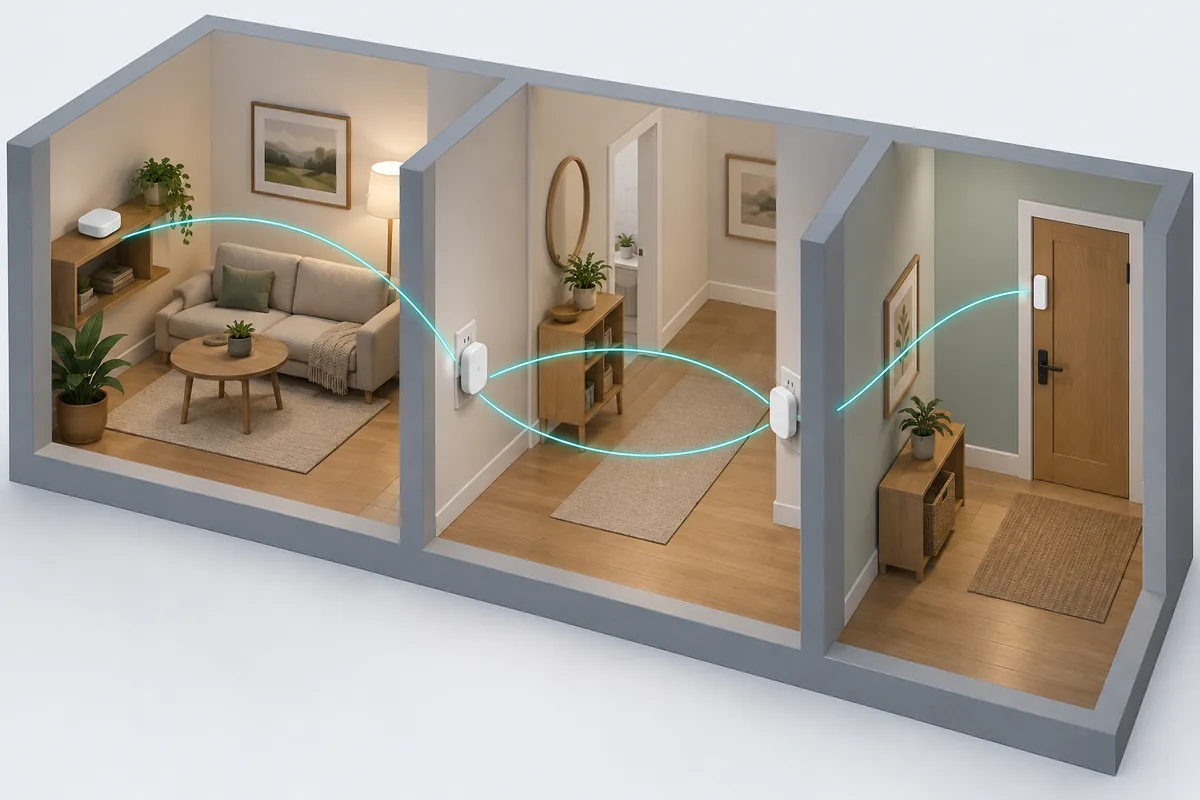
Three roles shape a typical home network:
- Coordinator: starts and manages the Zigbee network. A conventional network has one coordinator.
- Router: stays available to forward other devices’ messages and can provide a parent connection for end devices.
- End device: communicates through a parent but does not forward traffic for other nodes. Many battery sensors sleep between communications.
These roles are described in Home Assistant’s ZHA documentation. Many suitable mains-powered plugs, switches, lamps, and dedicated repeaters are routers. However, electrical power alone does not prove routing capability, compatibility, or quality. Check the exact device and firmware; do not assume every bulb or no-neutral switch strengthens the mesh.
A conceptual route might be coordinator → hallway router → landing router → bedroom sensor. The sensor needs a reliable connection to its parent, not necessarily a direct connection to the coordinator. A bulb used as a crucial router is a weak planning choice if someone regularly cuts its power at the wall.
Mesh is not unlimited. Routes need functioning neighbors, and devices have finite resources. Silicon Labs’ routing documentation explains route discovery and repair; a usable route can still fail when resources or links are unavailable. Do not multiply a marketing distance by an assumed hop count to promise property-wide coverage.
Match the Obstacle to the Improvement
The following planning matrix combines documented obstacle and topology principles with practical diagnostic choices. It is not an RF survey or a forecast of metres gained.
| Environment or obstacle | Expected signal impact | Practical improvement | Remaining limitation |
|---|---|---|---|
| Several interior partitions | Accumulated attenuation and changing reflection paths | Try a router in a hallway before the weak room | Wall construction and device antennas still vary |
| Reinforced floor between levels | Difficult vertical path despite short distance | Test router positions near an open stairwell on each level | Stairwell placement cannot bypass every barrier |
| Metal cabinet or large appliance | Blocking, reflections, or an unfavorable antenna position | Move the coordinator or router into an open position | The distant device may remain behind metal |
| Busy 2.4 GHz equipment near the coordinator | Noise, contention, or reception disruption | Separate radios and review channel overlap | Neighboring networks can change later |
| Detached garage or garden endpoint | Long gap plus exterior walls or metal cladding | Test compatible, appropriately rated router locations along a viable path | No powered location or usable intermediate link may exist |
| Many sensors relying on one relay | Fragile topology and possible bottleneck | Provide alternative powered router paths | Firmware and parent behavior affect recovery |
Use the table to choose one change, then test. If the weak point is a slab, another sensor will not create a relay. If failures affect almost every room, investigate the coordinator and shared noise sources before buying routers for each room.
A Six-Step Zigbee Range Troubleshooting Process
1. Check Coordinator Placement
Put the radio in a practical open location serving the devices, not hidden behind the computer or enclosed in a metal rack. Try a different antenna orientation before replacing hardware.
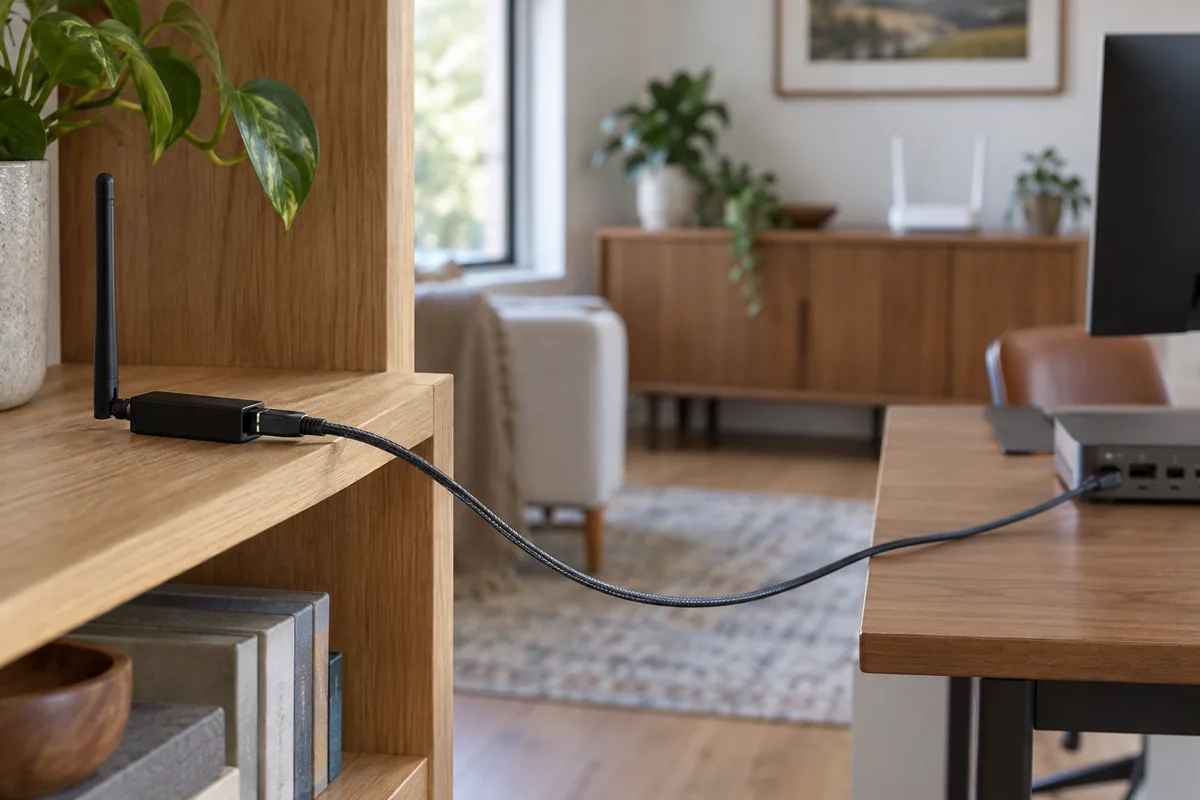
For USB coordinators, use a suitable shielded extension cable to separate the radio from the host, storage devices, and cables. USB 3.x equipment can generate interference affecting 2.4 GHz reception. A USB 2.0 connection or supported hub arrangement can help. Both Home Assistant and Zigbee2MQTT document placement and USB-related precautions.
2. Identify the Weak Areas and Failure Pattern
Make a simple floor plan marking the coordinator, powered routers, end devices, floors, and substantial barriers. Record which devices fail, when, and how: joining fails, reports stop, commands need retries, or responses become slow.
Separate one problematic model from one problematic room. A fresh battery, device compatibility issue, firmware fault, or host overload can look like poor range. Do not diagnose every unavailable entity as a radio-distance failure.
3. Evaluate Wi-Fi and Zigbee Interference
Zigbee and 2.4 GHz Wi-Fi can occupy overlapping frequencies. Their channel numbers are different numbering systems: matching or different numbers do not establish whether frequencies overlap.
Review your access points’ actual channels and width alongside the Zigbee channel. Look for changes correlated with outages, including nearby wireless equipment. Do not prescribe one universally best channel. Device support, neighboring networks, and regional constraints affect the choice.
Changing an established Zigbee channel may require recovery or re-pairing for some devices. Follow the platform’s migration instructions and preserve a backup before making that change. Physical separation is a lower-disruption experiment worth trying first.
4. Add Compatible Routers Before the Dead Zone
Choose a documented router supported by your platform and compatible with the affected devices. Join it to the same Zigbee network; a separate brand hub’s mesh does not automatically relay your network’s packets.
Place the router where it can still reach the healthy network and help the weak area. Installing it at the unreachable endpoint merely creates another unreachable device. Build outward, keep routers continuously powered, and avoid depending on one relay for an entire floor.
5. Review Routing, RSSI, and LQI Together
RSSI indicates received signal strength, commonly expressed in dBm. In a comparable measurement, a less-negative value indicates a stronger received signal. LQI is a link-quality indication, but its calculation and reporting depend on the chipset and stack.
Do not apply one universal pass/fail threshold. A displayed value may describe a particular hop rather than the entire route. Compare the same device and reporting method over time, alongside successful delivery, missed reports, retries, and latency. A missing line for a sleepy sensor on a network map does not alone prove disconnection.
6. Test Reliability Under Normal Household Conditions
Cause real state changes at the final device location with doors closed and the home in normal use. Check that the intended platform receives them and that any resulting device action completes.
Keep a small log: location, change made, time, expected report or action, and observed result. Repeat across ordinary activity periods instead of accepting one successful pairing. Change one variable at a time so you can identify which adjustment helped.
Worked Example: An Upstairs Sensor That Drops Out
Consider a hypothetical sensor above a reinforced floor. It pairs beside the coordinator, but reports intermittently after being moved upstairs. Buying another battery sensor would not add forwarding capability.
First test the coordinator away from computer interference. Next, try a compatible powered router near the stairwell where it has a viable link downstairs. Test another router position upstairs if the first link cannot reach the sensor’s area. Then check the actual contact reports, not just a prettier network map.
If reports become reliable but a light still reacts slowly, troubleshoot the automation separately. A radio improvement does not prove the trigger, conditions, integration, or target action is correct. The site’s Home Assistant automation guide explains that next layer.
This example supplies a test order, not a promised solution. Without measurements in the building, neither router count nor successful placement can be guaranteed.
What Does “Long Range Zigbee” Mean?
The label can describe three different things: ordinary mesh coverage extended by routers; particular radio hardware with a conditional longer single-link rating; or a different frequency and implementation. Ask which meaning the seller intends.
As of October 2026, the CSA’s Zigbee 4.0 announcement describes optional European 800 MHz and North American 900 MHz physical-layer support. Suzi is the Alliance’s Sub-GHz mesh direction built on Zigbee network-layer routing.
References to 868 MHz or 915 MHz must be tied to the regional band, exact hardware, and supported implementation. They are not alternative channels that every 2.4 GHz accessory can select. Check the controller, device ecosystem, and local approvals—including the exact versions sold in Australia and New Zealand. A software update cannot supply a radio band absent from the hardware.
Also distinguish Zigbee from proprietary long-distance radios. Digi’s buying guide separates Zigbee and DigiMesh product families; a long-range specification from another family is not proof of Zigbee accessory compatibility.
Improve the Right Network, Then Recheck the Outcome
A Wi-Fi extender does not repeat Zigbee packets. Thread has its own mesh, and a Thread Border Router connects Thread to adjacent IP networks; it is not a Zigbee range extender. Matter is an application-layer standard, not a stronger Zigbee radio. See the site’s Matter and Thread layer explanation or protocol comparison when choosing infrastructure.
For an existing Zigbee installation, begin with the cheapest informative test: move the coordinator away from interference and observe the affected devices. Then add suitable routers along demonstrated weak paths. Judge the result by dependable reports and actions under normal conditions—not maximum-distance advertising or one signal number.